
Important Responsibility Notice
Before connecting, please remember that as the account owner you are responsible for:
Reading and understanding all information provided on the Taurus website before purchasing. Ensuring you have a stable internet connection, a compatible computer, and proper installation of the platform. Contacting Quantower Support directly if you encounter any technical issues with the platform, as Taurus cannot adjust balances or make exceptions due to external platform malfunctions. By following these guidelines, you help us maintain a fair and efficient trading environment.
Step 1: Download and Open Quantower
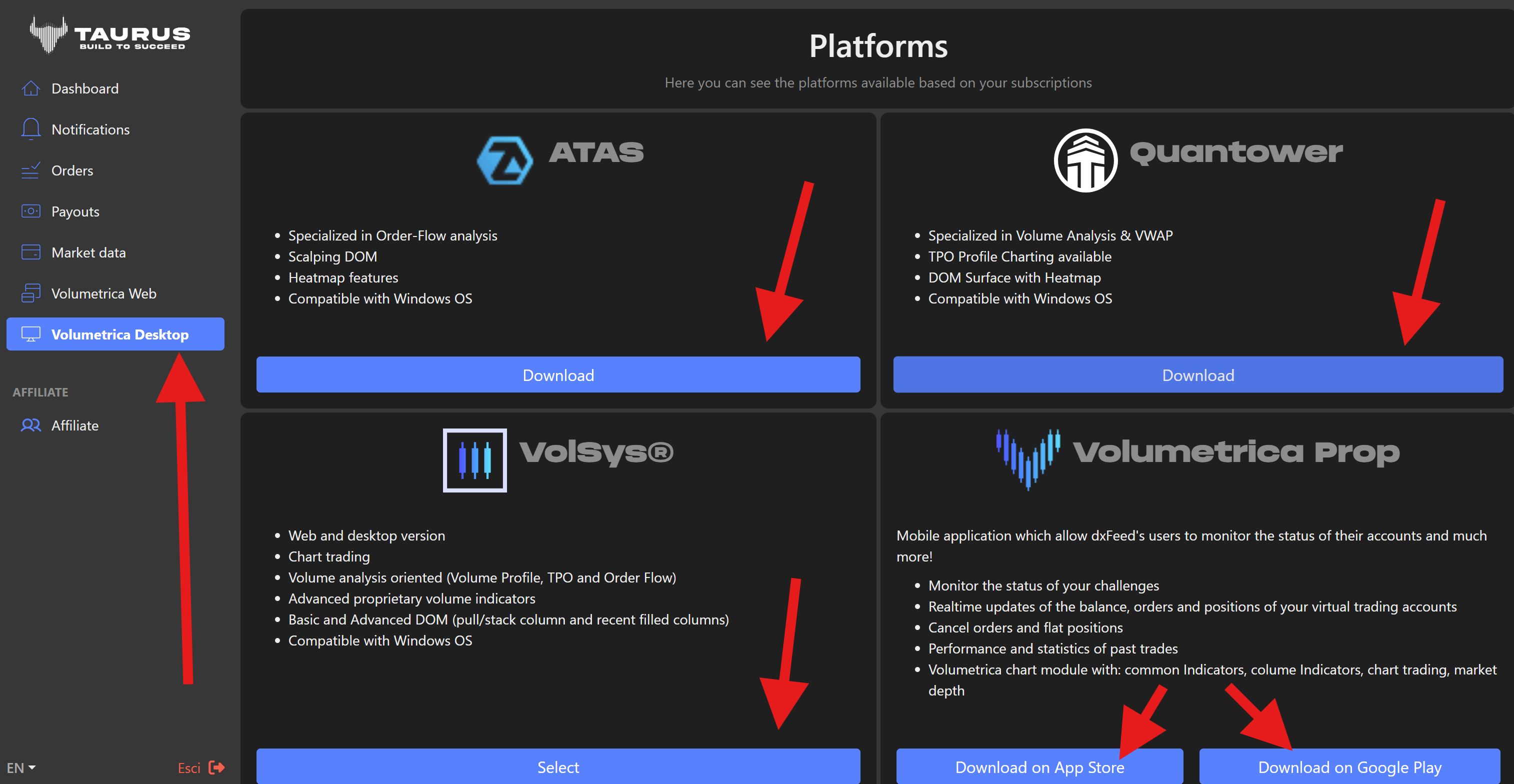
Go to the Volumetrica Desktop section, where you will find all available desktop platforms. Download Quantower and follow the simple steps to complete the installation.
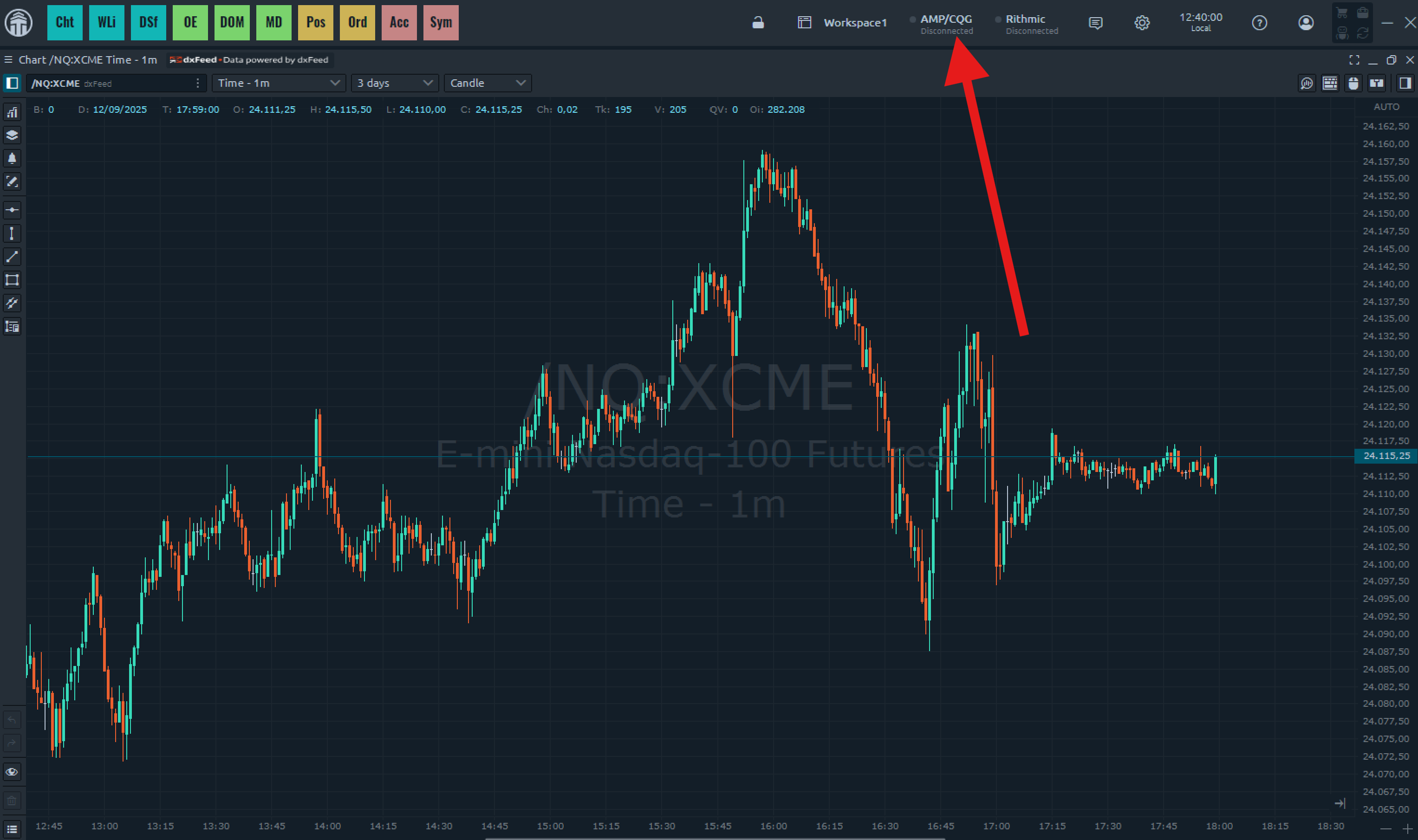
Once installed, launch the platform on your device and click the Connections icon on the main interface.
Step 2: Add a Connection
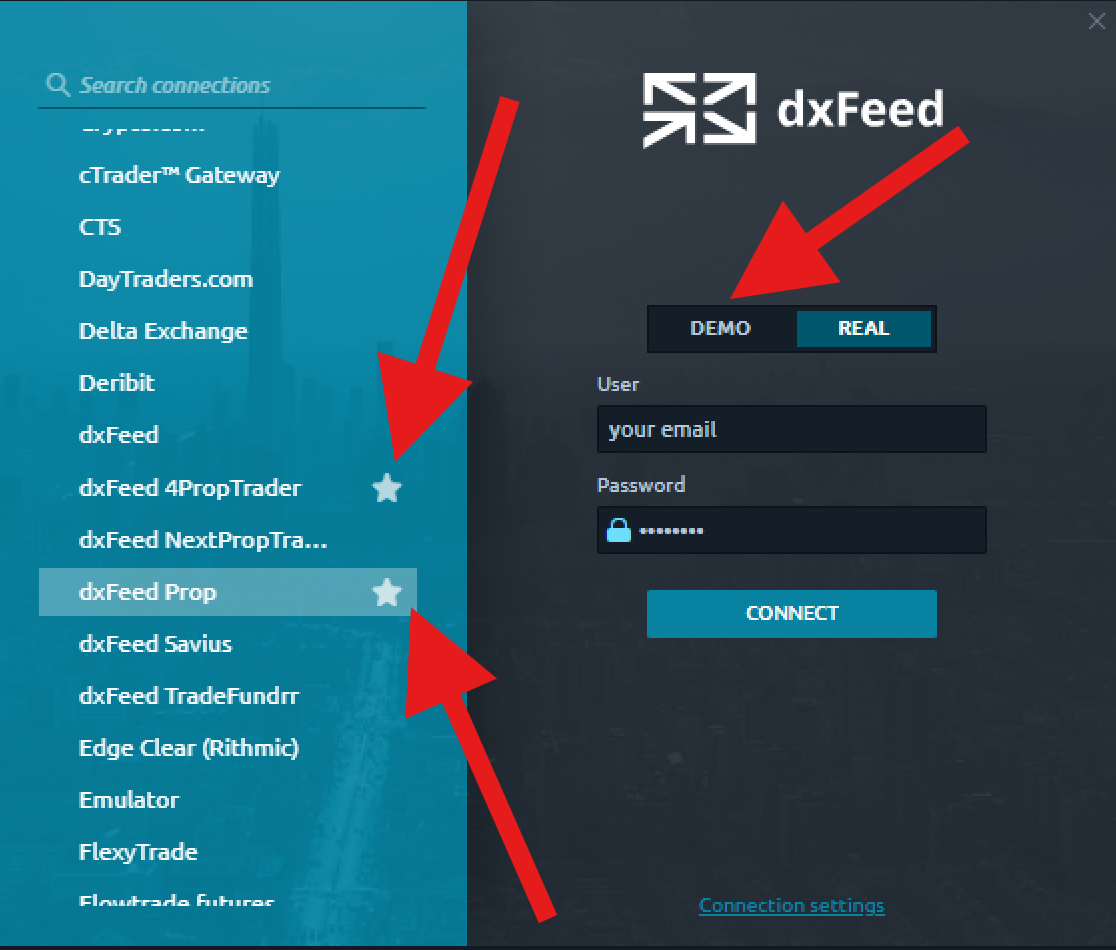
In the Connections window there are two valid options you can connect to:
DXFeed Prop
DXFeed 4 PropTrader
Both are valid. Don’t forget to check the Demo box as shown in the image. Use the same username and password you use to log in to your Taurus dashboard to complete the connection.
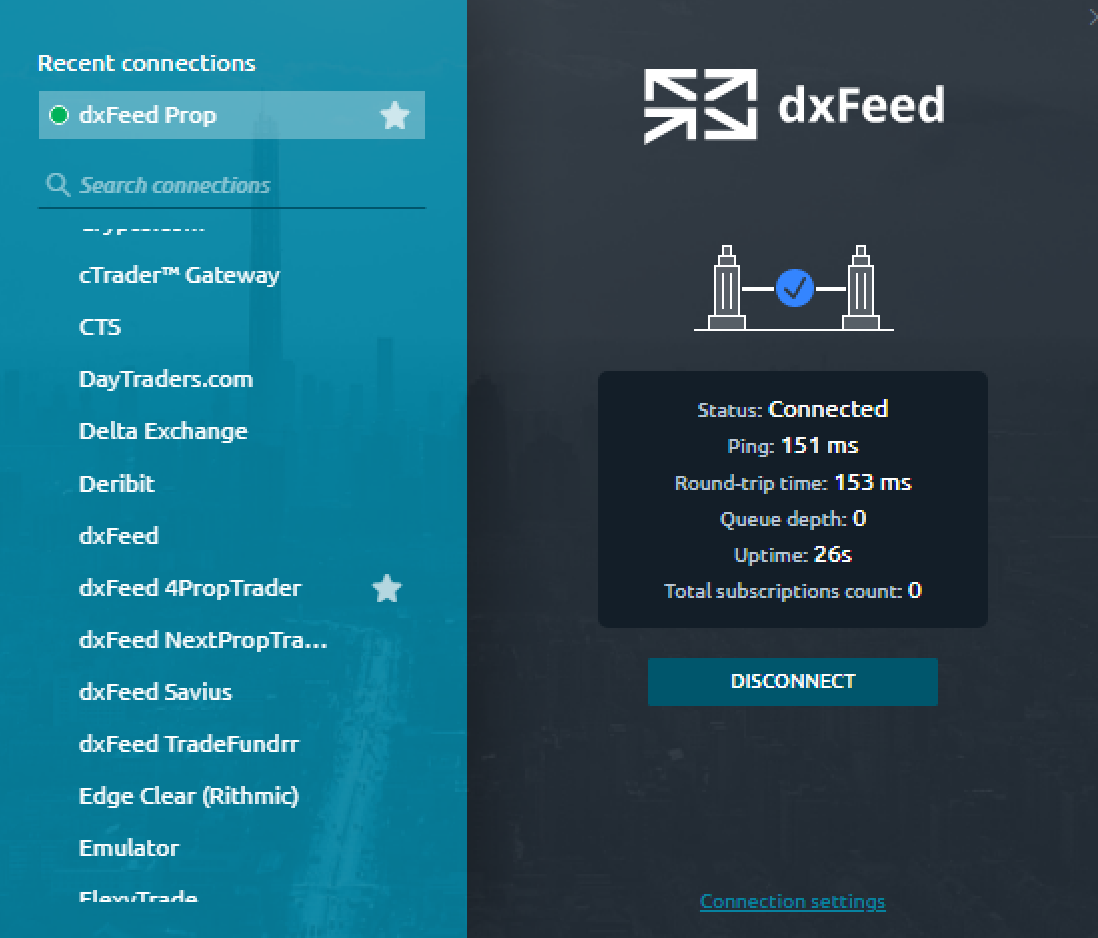
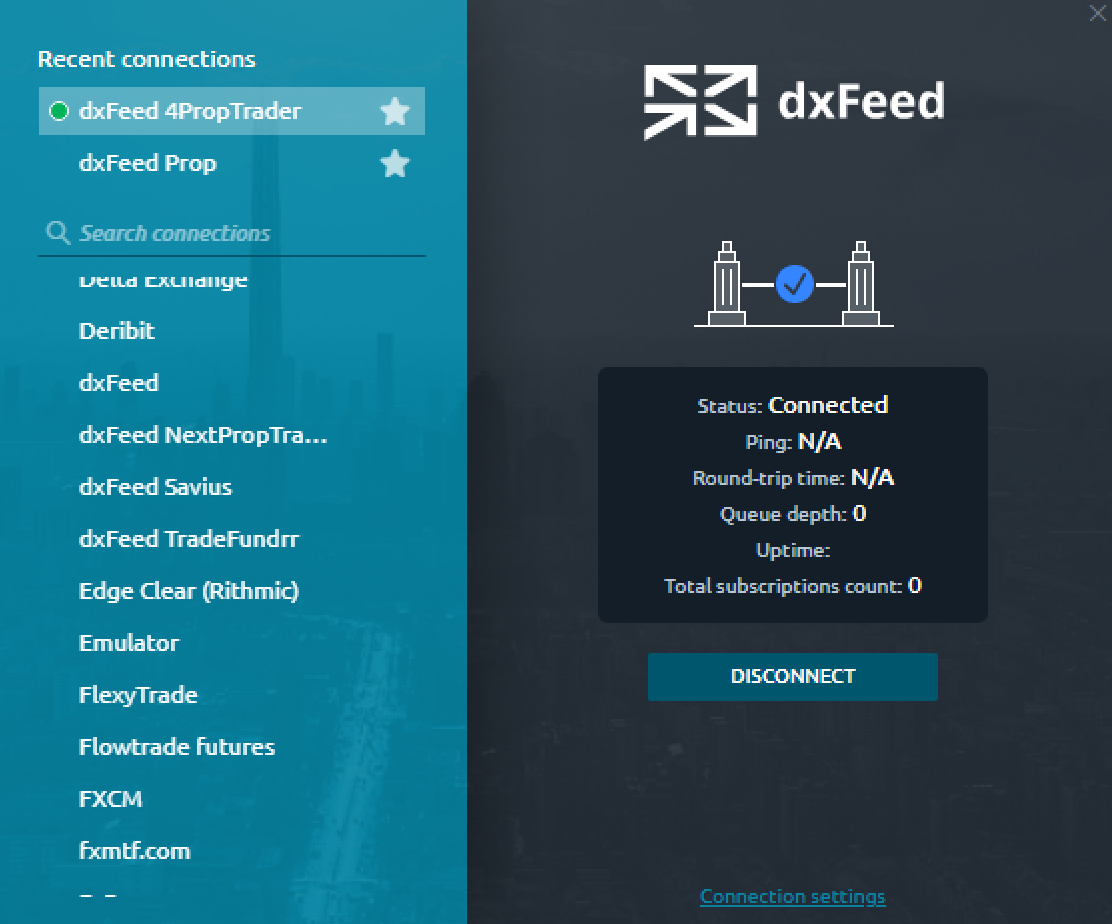
After connecting, select the futures instruments you want to access (e.g., CME, CBOT, NYMEX, COMEX) and adjust your watchlists or trading panels as needed.
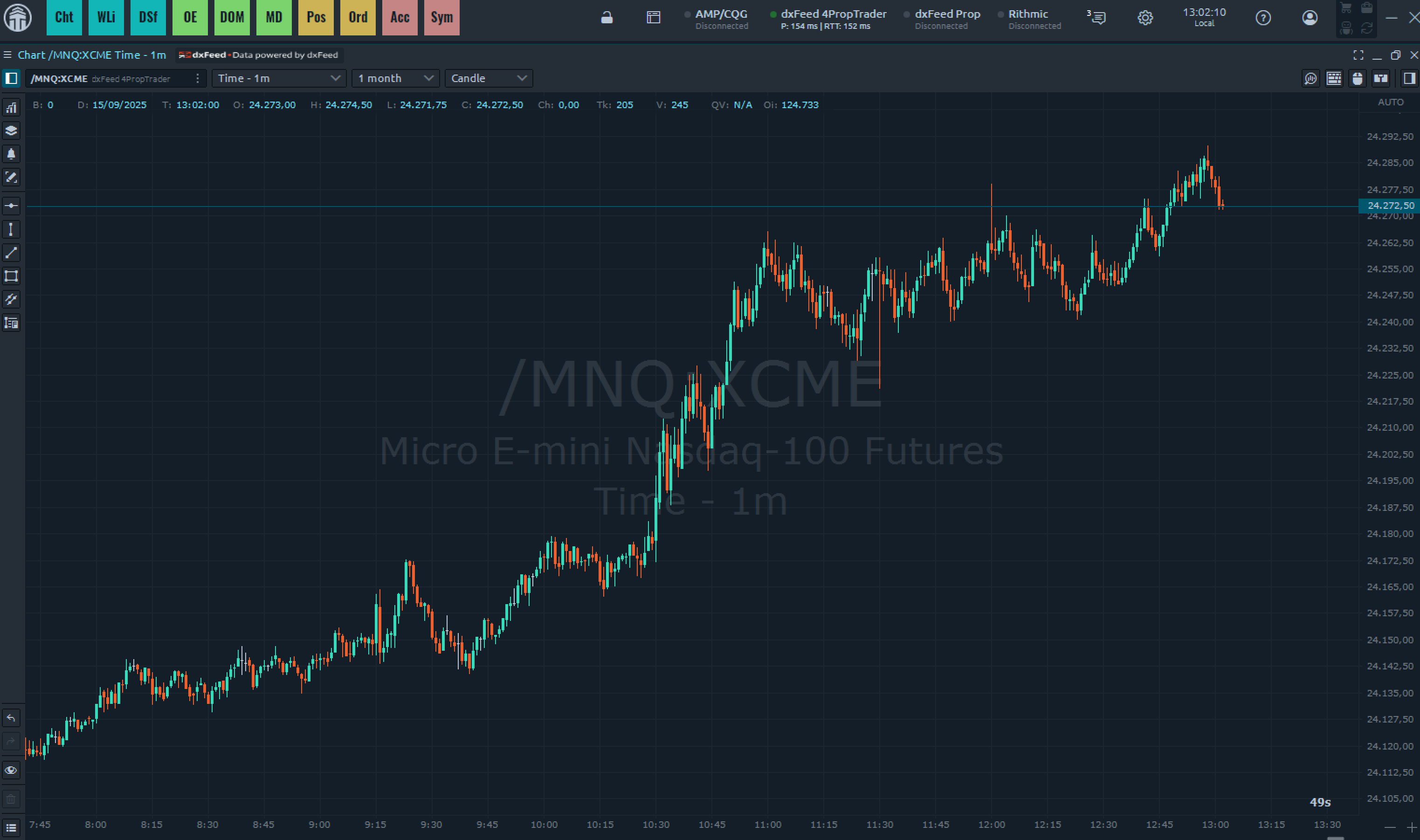
Your Taurus account is now linked to Quantower, giving you access to real-time data, advanced charts, and professional trading tools. If you face any technical difficulties within Quantower, please reach out to Quantower Support directly through their help section or live chat.