
If you experience connection issues, the first thing you should do is protect your accounts by making sure all your open positions are safely closed and all pending orders are canceled. This helps prevent potential losses and ensures your accounts remain in good standing.
There are two ways to close your positions and cancel your pending orders from the Taurus Dashboard.
Option 1: Use the Emergency Cancel Flat Button
Log in to your Taurus account and go to the Dashboard.
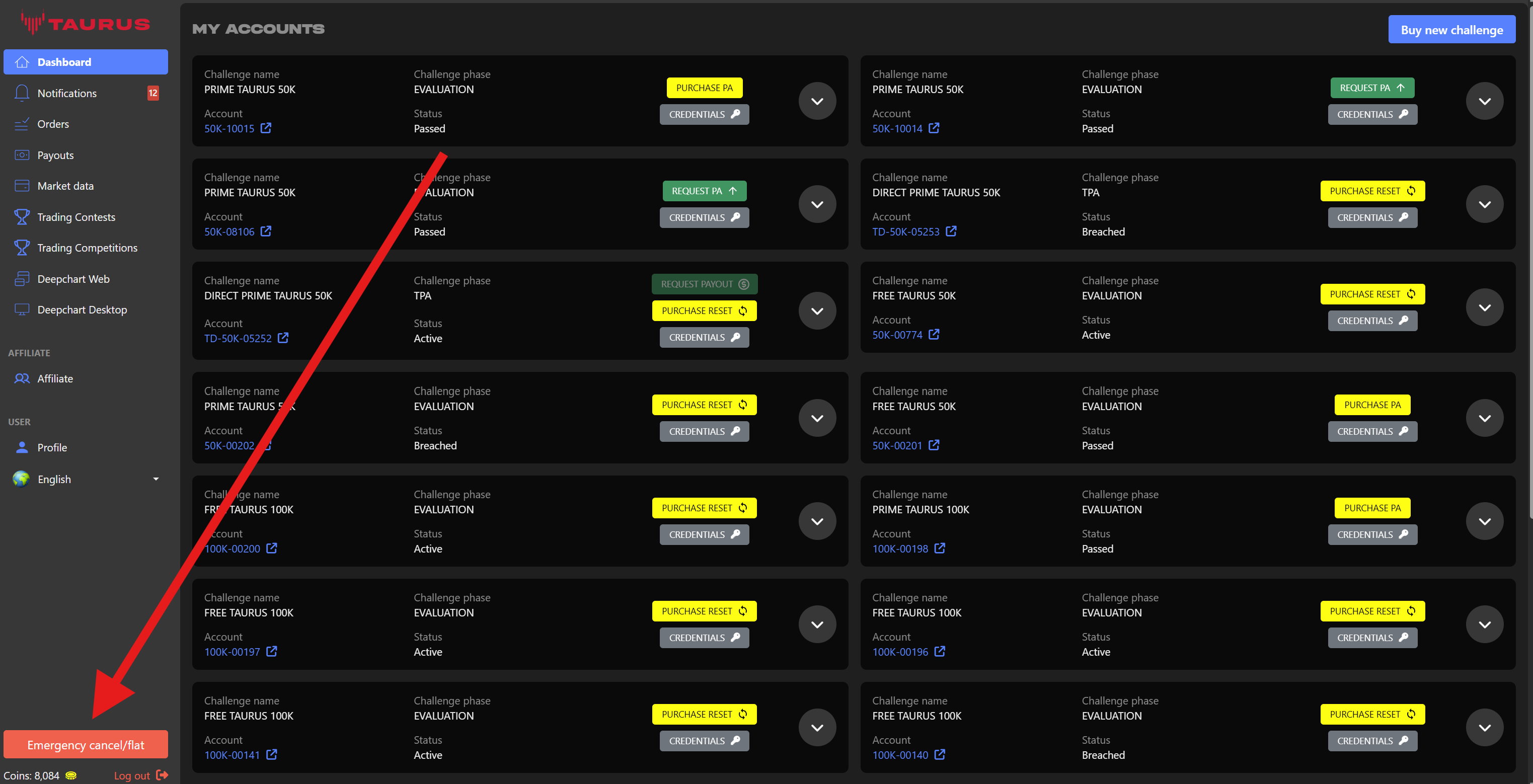
Locate the red “Emergency Cancel Flat” button in the bottom-left corner of the Dashboard and click it.
This action will immediately cancel all pending orders and close all open positions.
Option 2: Close Positions Directly from the Account You Are Trading
First, make sure you are logged in to your Taurus account. From the Dashboard, select one account at a time by clicking on the account number you want to manage.
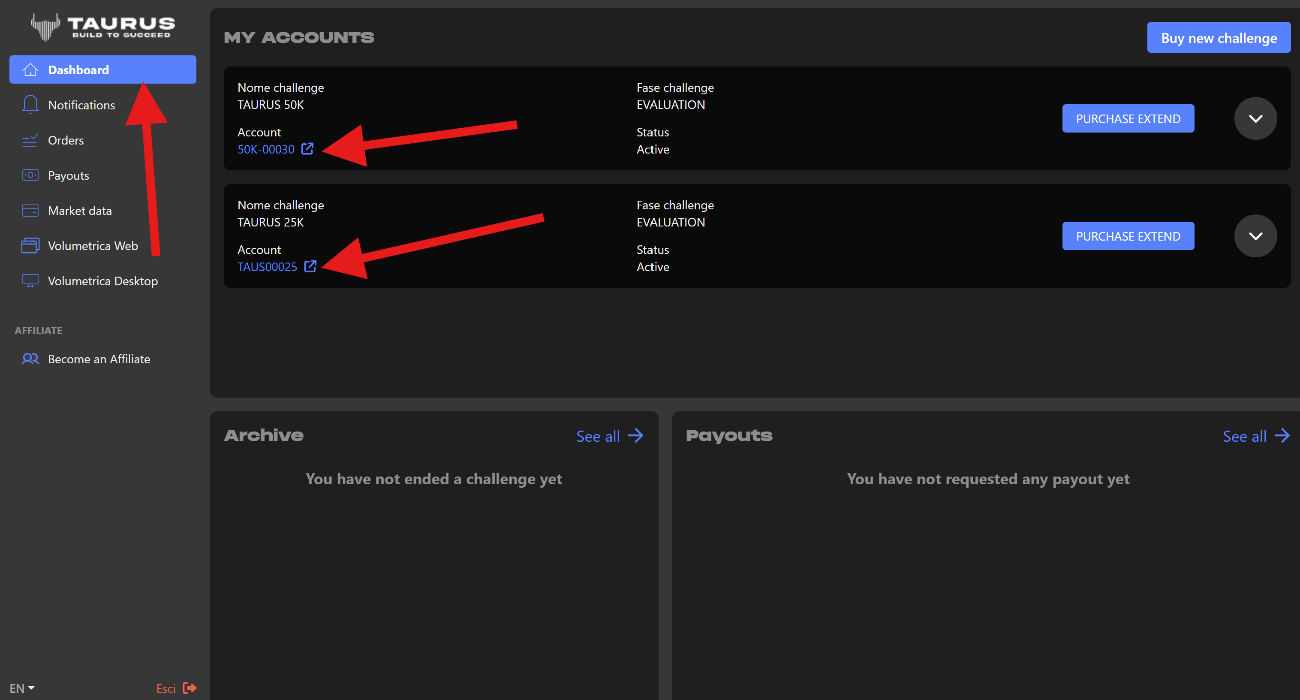
First of all, make sure you are logged in to your Taurus account, and select one account at a time.Click on the account number you want to manage.
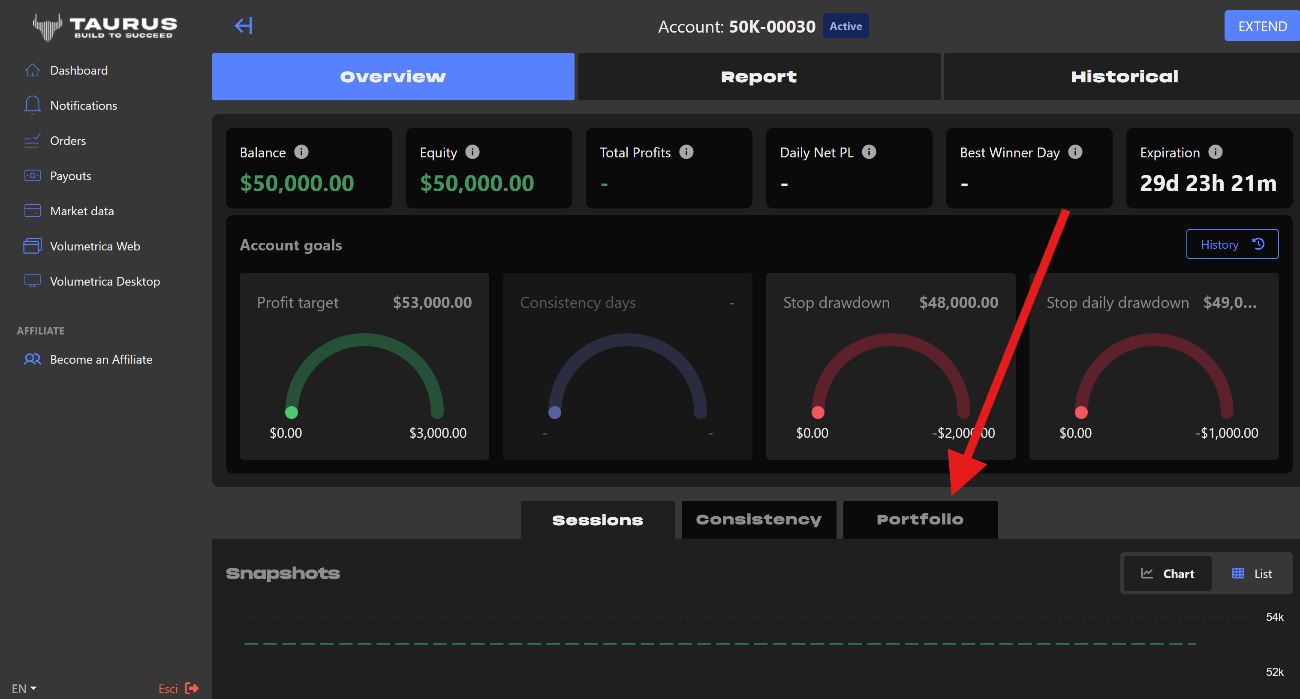
Once you are inside the selected account, click on “Portfolio.”
This section will display your open positions, pending orders, and overall account status.
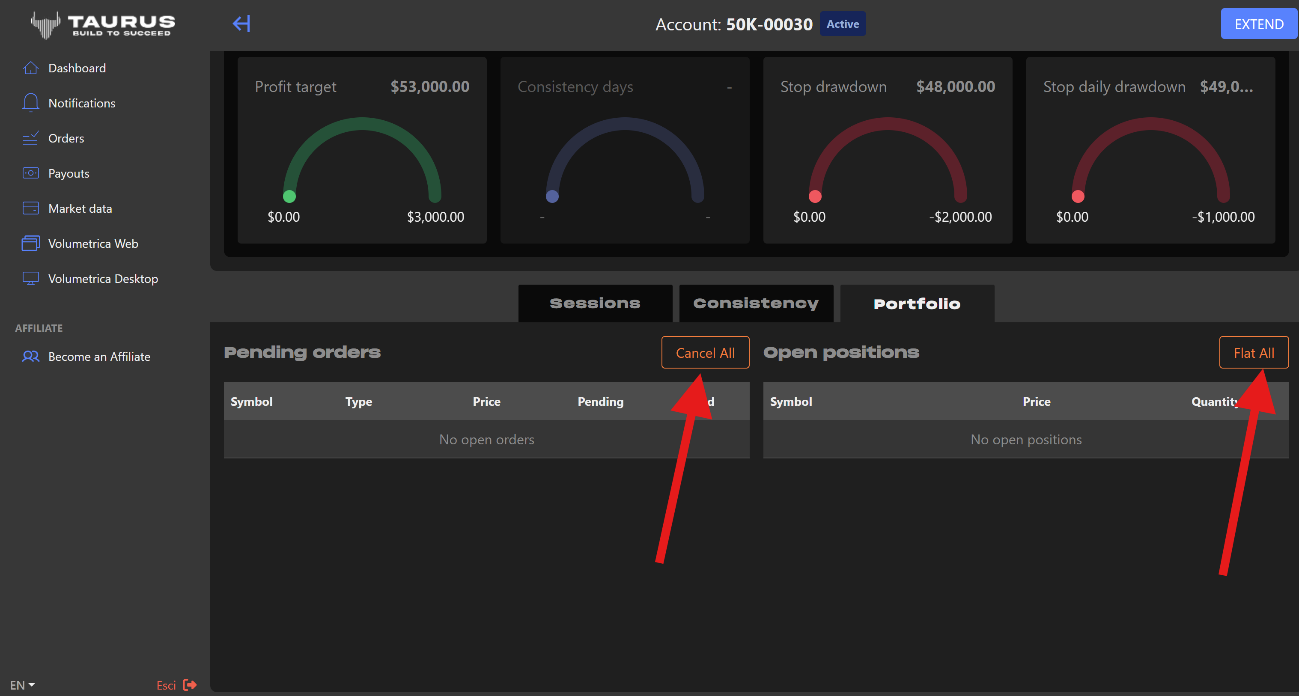
Next, click “Cancel All” to cancel all pending orders, and then click “Flat All” to close all open positions.
This action will immediately cancel all pending orders and close all open positions. The command is sent directly to the data feed, helping ensure fast and effective execution.
Both methods are designed to help protect your accounts during connection issues or other unexpected situations.